I'm in Your Apps
Leveraging Codex Tokens to Abuse the `codex_apps` MCP Server
Originally posted: Leveraging Codex Tokens to Abuse the codex_apps MCP Server | PhantomLabs, BeyondTrust authored by me.
Endpoint Agent Workflows
AI Agents have become a part of everyone’s workflow. The more people interacting with these agents, the higher the desire to integrate these agents with third-party applications like Microsoft 365 (Outlook, Teams), Google Workspace, GitHub, etc. This makes individual workflows faster and easier. But at what cost? Are we just allowing these agents any scope they want for these applications? Are we monitoring the application requests coming from these agents?
In this blog, I will walk through how easy it is for an attacker to interact with Model Context Protocol (MCP) servers that are connected to a user’s account once valid credentials are obtained, and how this could lead to further compromise.
Obtaining User Credentials
Unfortunately, there are a number of ways to obtain a valid access token for a Codex user. In a follow-up blog I will go over the various options in detail, but for now I’ll mention the most common ways I’d imagine an attacker obtaining a user’s credentials.
-
Device Code Phishing
Codex recently started to support Device Code to legitimately authenticate a user. Device code phishing is not a new thing. It has been a means of legitimate compromise for a while and has been well documented by various companies over time. Seeing this support made me think, if this isn’t being leveraged by attackers yet, it will be.
-
On Disk Theft
In a previous post of mine, I outlined that a user’s credentials are stored in their home directory under
.codex\auth.json, which gives whoever reads that file a valid access token, an id token, and a refresh token. Codex also supports a “sandbox”, which, due to how it is implemented, gives the sandbox user the ability to read the parent user’s auth.json file. If multiple users share access to a computer and all have Codex and the sandbox installed, a process launched as the sandbox user can read any of the auth.json files on disk.
There are going to be other ways for someone to obtain valid credentials of a ChatGPT user, which I will cover in a future post, but for now, those are the most likely ways I see credentials being stolen for reuse.
What Are Codex Apps?
Codex allows a user to connect 3rd party applications (Gmail, GitHub, Google Docs, etc.) to integrate those tools into your workflow. Codex calls these integrations Apps. They are really just remote MCP servers that expose tools through their “store”. To connect an App, go to Codex -> Plugins:
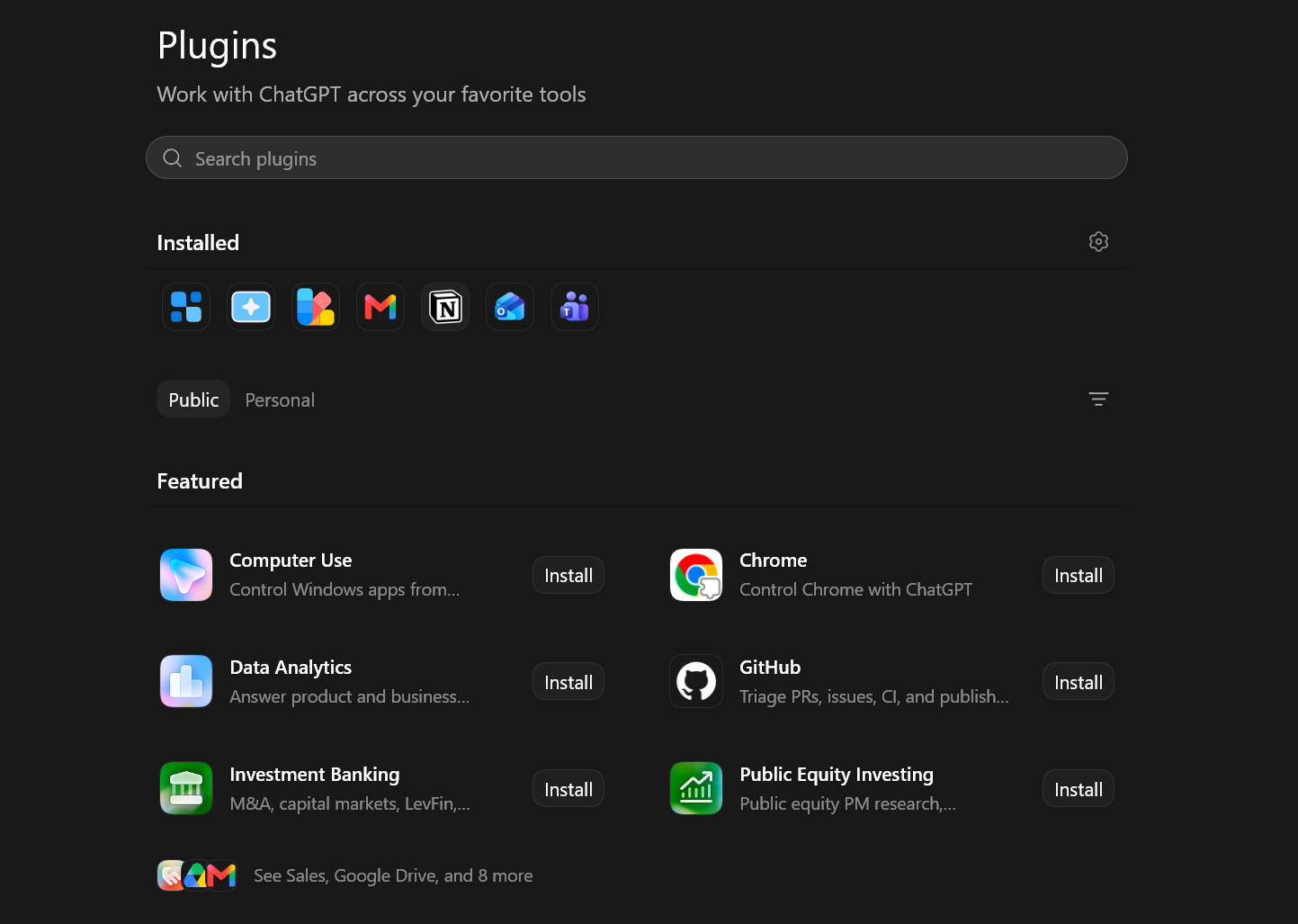
Codex ships with a set of default Apps you can attach, such as GitHub, Notion, Google Calendar, Teams, Outlook Calendar, and others. You can also build your own. For this writeup, I’ll focus on default apps that can be connected to a Codex account. In the above image (Figure 2), you can see there is a GitHub app I could install and integrate.
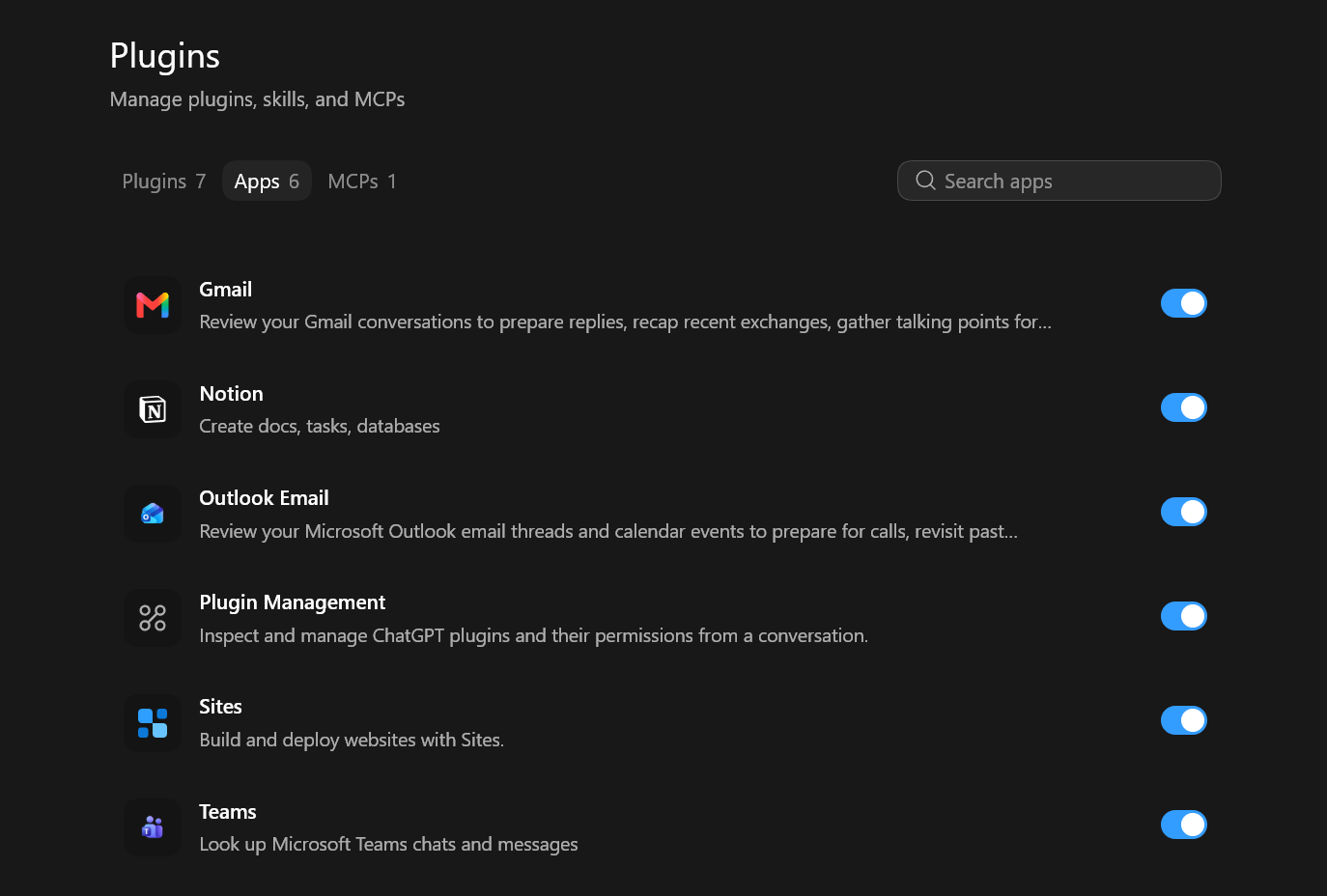
You can then see which Apps are installed by going to Codex -> Plugins -> Manage -> Apps:
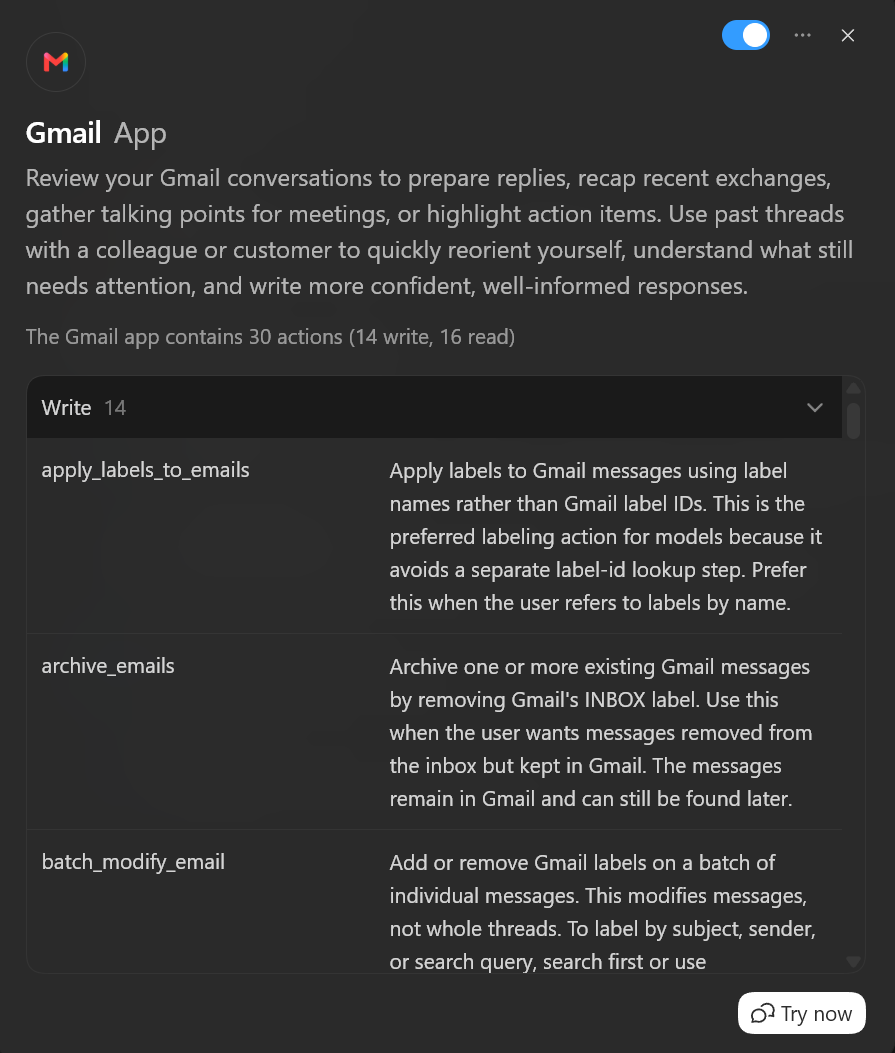
If you click on one of the installed apps, it will open up and show you the available Write and Read tools it supports:
When you connect a third-party application like Google Drive, you go through the usual OAuth flow. After that, Codex generally does not ask you to sign in again before enumerating files, searching them, or creating new ones. That is because the connector authorization is managed server-side for your Codex account, rather than being freshly approved from the local machine for each request.
The mechanism behind this is a remote MCP server called codex_apps. For the Codex client, the codex_apps MCP endpoint resolves to https://chatgpt.com/backend-api/wham/apps. Once a connector, the backend’s term for an App, is authorized, the backend exposes its tools to your account. Codex, acting as the MCP client, calls tools/list to discover them and tools/call to invoke them on the user’s behalf.
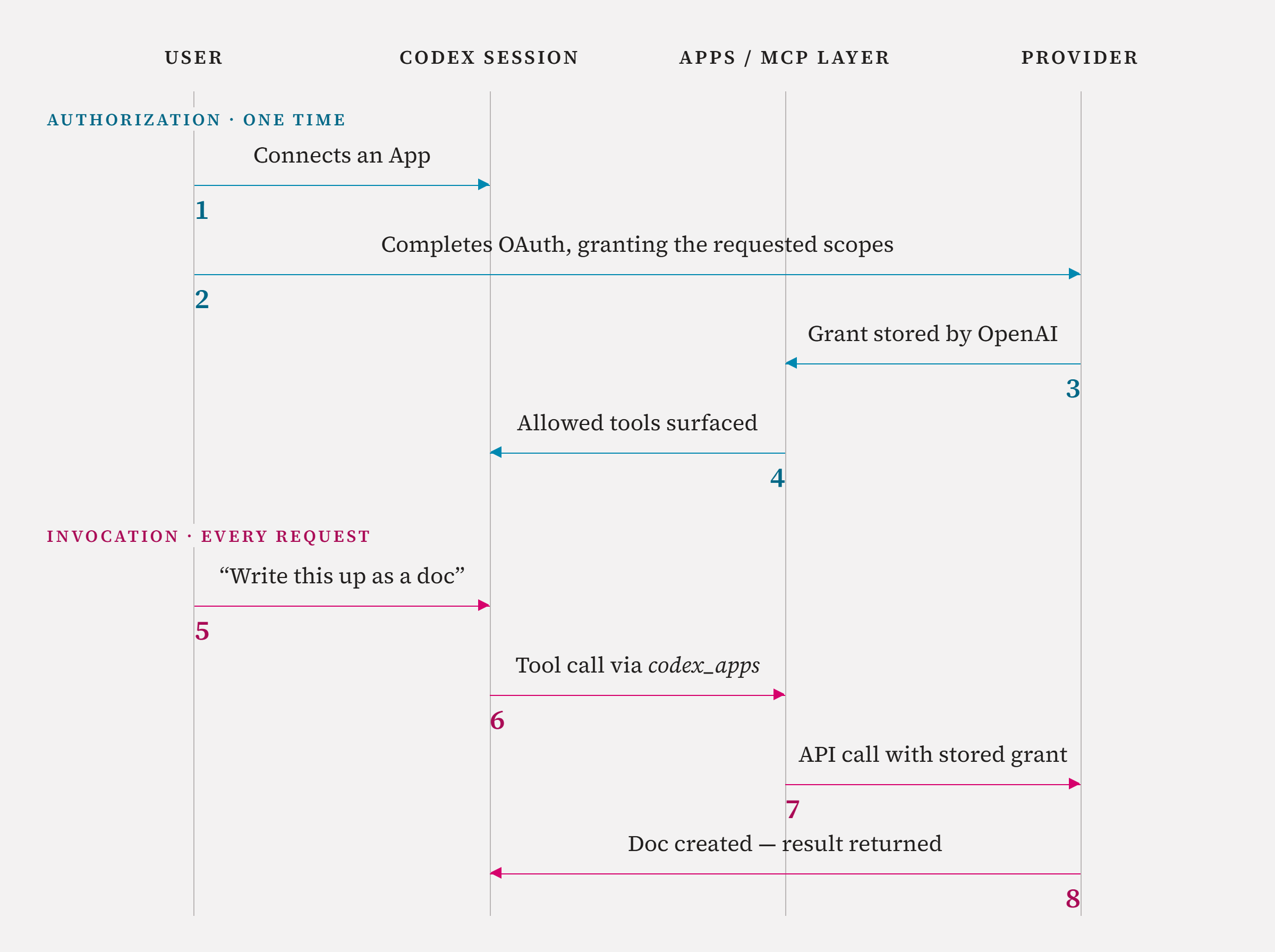
There are really two phases to this flow: Authorization and Invocation of a tool. At a high level, the steps are outlined below.
Phase 1: Authorization (one-time, less frequent):
- The user connects an App in ChatGPT/Codex.
- The user completes the provider’s OAuth flow, granting the requested scopes.
- OpenAI stores and maintains the resulting connected-App authorization on the user’s behalf.
- The App’s allowed tools are surfaced to the user’s Codex session through the Apps/MCP tool layer (
codex_apps).
Phase 2: Invocation (per request):
- The user requests a tool call (say document creation).
- Codex calls the relevant App tool through
codex_apps. - The Apps/MCP backend calls the upstream provider API using the user’s stored App authorization.
- The provider performs the action, say a Google Doc is created, and the result is returned to the Codex session.
App Scopes
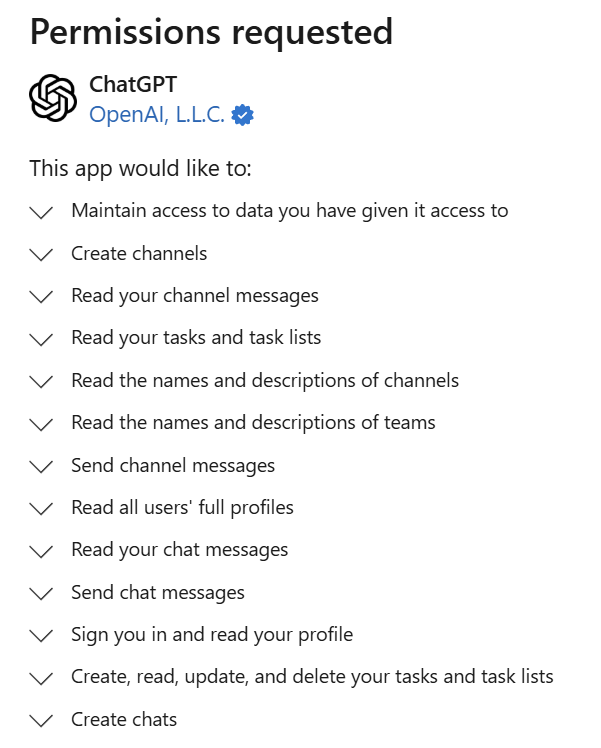
There is one thing to note about granting scopes. When playing around with these Apps, I noticed that there wasn’t a way to limit their scopes. With Google Docs, I could, but below is an example where Teams basically said, “give me the world and trust me”:
Manually Calling Codex_Apps
After obtaining a user’s access token, either by one of the ways from the above section or another way, I should be able to communicate with Codex’s MCP server codex_apps. If we look at the typically granted access token (one’s typically on disk) we get the following scopes:
openid,profile,email,offline_access,api.connectors.read,api.connectors.invoke
The api.connectors.read and api.connectors.invoke scopes are what enable interaction with the available tools through the MCP layer. Now, leveraging CodexArsenal, a PowerShell toolkit I built for interacting with Codex’s backend endpoints, let’s enumerate the tools the MCP server exposes:
$accessToken = 'eyJ..'
$accountId = '123....'
$script:mcpSession = $null

$tools = Get-CodexTool -AccessToken $accessToken -AccountId $accountId

$tools._meta.connector_name | Sort-Object   -Unique
GitHub
Gmail
Google Drive
Microsoft Outlook Email
Microsoft Teams
Notion
For my account, you can see I have the following apps attached - GitHub, Gmail, Google Drive, and more. What can I do with these though? Well each application has supported MCP tools that can be invoked from the codex client (or anyone with a codex access token). Now, let’s look at a Gmail example:
Let’s say you wanted to see the list of available calls that could be invoked for the Gmail app. You could query them via:
$tools | Where-Object name -Like '*gmail*' | % {
      [PsCustomObject]@{
          Tool        = $_.name
          Description = $_.description
          Inputs      = $_.inputSchema.properties.psobject.Properties | % {
              "$($_.Name): $($_.Value.type)"
          }
      }
  } | fl *
Tool : gmail_delete_emails
Description : Move one or more existing Gmail messages to Trash. This matches Gmail's delete behavior and does not permanently delete the messages.
Inputs : message_ids: array
...
Tool : gmail_update_draft
Description : Update an existing Gmail draft in place. Omitted fields preserve the current draft content; pass an empty string only when the user explicitly wants to clear that field. Drafts with attachments are not editable through this action.
Inputs : {draft_id: string, to: , subject: , body: ...}
...
Tool : gmail_send_email
Description : Send an email from the authenticated Gmail account.
Inputs : {to: string, subject: string, body: string, cc: string...}
See anything interesting? How about gmail_send_email? This means I can invoke the gmail_send_email tool through the codex_apps MCP server to send an email as the victim. Could this be useful for anything? Maybe…internal phishing? If a coworker sends you an email that says, “can you take a look at this document,” or if IT sends an email that says, “we are migrating to Microsoft, please click here to authenticate,” would you click on that? You don’t see a weird “EXTERNAL” at the top of the email, and the email isn’t coming from a weird domain…so why not?
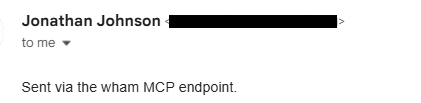
This MCP tool also allows someone to add attachments. I ran the following to validate:
$send = Invoke-CodexTool -AccessToken $accessToken -AccountId $accountId -Name 'gmail_send_email' -Arguments @{
    to      = 'test@test.com'
    subject = 'MCP test'
    body    = 'Sent via the wham MCP endpoint.'
}
Below are some other MCP tools that may be of interest to others. This isn’t every tool that every remote MCP server supports, just the ones that could be abused, in my opinion:
Outlook
| Tool | Description |
|---|---|
email_send_email | Send a new Outlook email immediately. Use this when the user has finalized the message and wants it sent now. For draft-first workflows, use draft_email instead. Email bodies are plain text only. Optional attachment files must be file references, not base64 strings. |
email_send_email_on_behalf | Send a new Outlook email from a delegated/shared mailbox. Use this only when the user explicitly asks to send from or on behalf of another mailbox and provides that mailbox’s exact email/UPN. For the signed-in user’s own mailbox, use send_email instead. Optional attachment files must be file references, not base64 strings. |
email_reply_to_email | Reply to an existing Outlook email. Use this when the user wants to answer an existing thread. This sends immediately. For a draft-first workflow, create a new draft instead of using this action. |
email_forward_email | Forward an existing Outlook email to new recipients. Use this when the user wants to send an already-received message onward. This sends immediately; it does not create a draft. Provide at least one recipient in to. |
email_schedule_email | Queue a new Outlook email for future delivery. |
email_add_email_attachments | Attach file references to an existing Outlook draft or message. Use this for draft-first workflows after draft_email, create_reply_draft, or create_forward_draft when attachments need to be added before the user reviews or sends the draft. Pass file handles, not base64 content. |
email_get_recent_emails | Return the top_k most recently received Outlook emails. This is a convenience wrapper around list_messages for simple “latest email” requests. Use list_messages directly when you need pagination, folder targeting, filters, or a custom sort order. |
email_fetch_message | Fetch a single Outlook email by its ID. Use this when full message details are explicitly required. Do not call this immediately after list/search if subject/sender/time/preview/body snippets already satisfy the user request. |
Teams
| Tool | Description |
|---|---|
teams_send_chat_message | Send a new message to an existing Microsoft Teams chat. Use this for one-on-one or group chat conversations when the user wants to post a new chat message now. If you need richer chat metadata after sending, use explicit read actions such as resolve_chat, list_chats, or fetch. This action may fail because it needs an OAuth permission that was not requested when this connection was created. Reconnect to request the new permission. |
teams_send_channel_message | Send a new top-level message to a Microsoft Teams channel. Use this when the user wants to start a new channel thread. For replies inside an existing thread, use reply_to_channel_message. If you need richer channel metadata after sending, use explicit read actions such as resolve_channel, list_channels, or fetch. This action may fail because it needs an OAuth permission that was not requested when this connection was created. Reconnect to request the new permission. |
teams_create_chat | Create a new Microsoft Teams chat. Use this when the user explicitly wants a new DM or group chat. Provide exact Microsoft Entra user IDs for the intended participants. For a direct chat, use chat_type='oneOnOne' and include exactly two participant user IDs, including the signed-in user. For a group chat, include one or more participant user IDs. Do not use this to message yourself; first call resolve_chat(include_self_chat=True) to find an existing self-chat, then use send_chat_message with that chat_id. If you need to look up chat details after creation, use explicit read actions such as list_chats or resolve_chat. This action may fail because it needs an OAuth permission that was not requested when this connection was created. Reconnect to request the new permission. |
teams_create_channel | Create a new Microsoft Teams channel inside an existing team. Use this when the user explicitly wants a new channel in a known team. This action only creates the channel itself and does not add members during creation. If you need to inspect the created channel afterward, use explicit read actions such as list_channels or resolve_channel. This action may fail because it needs an OAuth permission that was not requested when this connection was created. Reconnect to request the new permission. |
teams_resolve_user | Resolve Microsoft Entra users for Teams chat creation or member lookup. Use this before create_chat when the user names people but you need exact Microsoft Entra user IDs. |
GitHub
| Tool | Description |
|---|---|
github_create_file | Create a new UTF-8 text file through GitHub’s contents API. Returns only the resulting commit SHA, not GitHub’s full content/commit payload. Docs |
github_update_file | Replace a UTF-8 text file through GitHub’s contents API. Returns the resulting commit SHA and content blob SHA. Use content_sha for a subsequent sequential update. Do not run update/delete writes for the same path in parallel. Docs |
github_delete_file | Delete a file through GitHub’s contents API. Returns only the resulting commit SHA. Docs |
github_create_branch | Create a new branch from exactly one existing commit SHA or base ref. |
github_create_commit | Create a commit pointing to tree_sha with one or more parents. |
github_create_pull_request | Open a pull request in the repository. Returns the connector’s normalized PR snapshot, not the full REST response payload. Docs |
github_merge_pull_request | Merge a pull request immediately. Returns GitHub’s merge result payload (sha, merged, message). Docs |
github_enable_auto_merge | Enable auto-merge for a pull request. This wrapper infers the merge method from repository settings and returns only success. Docs |
github_create_issue | Create a GitHub issue. Returns a normalized issue snapshot, not GitHub’s raw REST payload. Docs |
github_list_repositories | List repositories accessible to the authenticated user. |
github_get_user_login | Return the GitHub login for the authenticated user. |
github_download_user_content | Download a GitHub private user image attachment URL. Use this only for private-user-images.githubusercontent.com URLs, such as GitHub issue or pull request image uploads. Use fetch or fetch_file for repository files. |
As you can see, there are some tools that can be invoked to allow an attacker to impersonate a user. These can be used to extend malicious binaries through emails, create pull requests (PRs), etc. There are plenty of other tools that are exposed in these apps, but also other apps that I didn’t explore. Personally, I wish there was a way for me to track remote MCP tool invocations per session. Does this logging exist currently?
Detection and Logs
Providers
Provider-side logs, such as Google OAuth logs, Gmail audit logs, Microsoft Graph audit logs, or GitHub audit logs, are still useful because they may show the action taken within the provider. For example - Outlook/Gmail logs may show that an email was sent to another email, but that doesn’t really give us everything we’d need to determine if that action was malicious or unintended.
The logs do not give the full picture, or at least, the ideal amount of context for this scenario. If someone steals a Codex/OpenAI access token and uses it to invoke a codex_apps tool, the provider will show the address of the backend OpenAI IP where the action came from, not the actual host machine where the request was made. The provider sees the OpenAI-connected application using previously granted delegated access. It will not show the OpenAI token refresh, the Codex client context, the MCP tool name, or the arguments passed into the tool.
An example is Gmail audit logs showing mail delivery activity. In this log you get the time the email was sent from, actor email, IP address, message info, and more. Below is an example if I send an email through my browser:
Time            : 2026-07-31T21:41:37.068Z
ApplicationName : gmail
EventType       : delivery_type
EventName       : delivery
ActorEmail      : <REDACTED>
ActorCallerType : USER
IpAddress       : 2600<MY PUBLIC IP>
Subject         : Browser Test
You can see that this will track that I sent this email from a machine tied to the public IPv6 of my machine. If we take a look at an email sent through the MCP tool, Gmail instead records 172.170.8.217. That address falls within 172.170.8.208/28, one of ChatGPT’s published connector IP ranges:
Time            : 2026-07-31T21:45:04.606Z
ApplicationName : gmail
EventType       : delivery_type
EventName       : delivery
ActorEmail      : <REDACTED>
ActorCallerType : USER
IpAddress       : 172.170.8.217
Subject         : MCP Test
This makes the email activity consistent with an OpenAI connector call, but it does not reveal where the original request came from. That makes it hard to differentiate legitimate from illegitimate usage using Gmail’s logs alone.
Because of that, provider logs are useful for confirming the resulting activity, but the most important detection context needs to come from OpenAI or the agent platform brokering the connector call.
Desired OpenAI Telemetry
OpenAI could expose an MCP tool invocation event for each tool call that shows what was invoked and where the request came from. Useful fields would include:
- The user and the connector/App name
- The tool name and result status
- Source IP address, user agent, and client type
- Request ID, and the access token or session identifier behind the call
- Structured or redacted parameters relevant to the action
We want to see what session is invoking MCP tools and where that session request is coming from. The origin fields are exactly what provider-side logs can’t give us since (as shown above) Gmail only ever sees OpenAI’s connector IP.
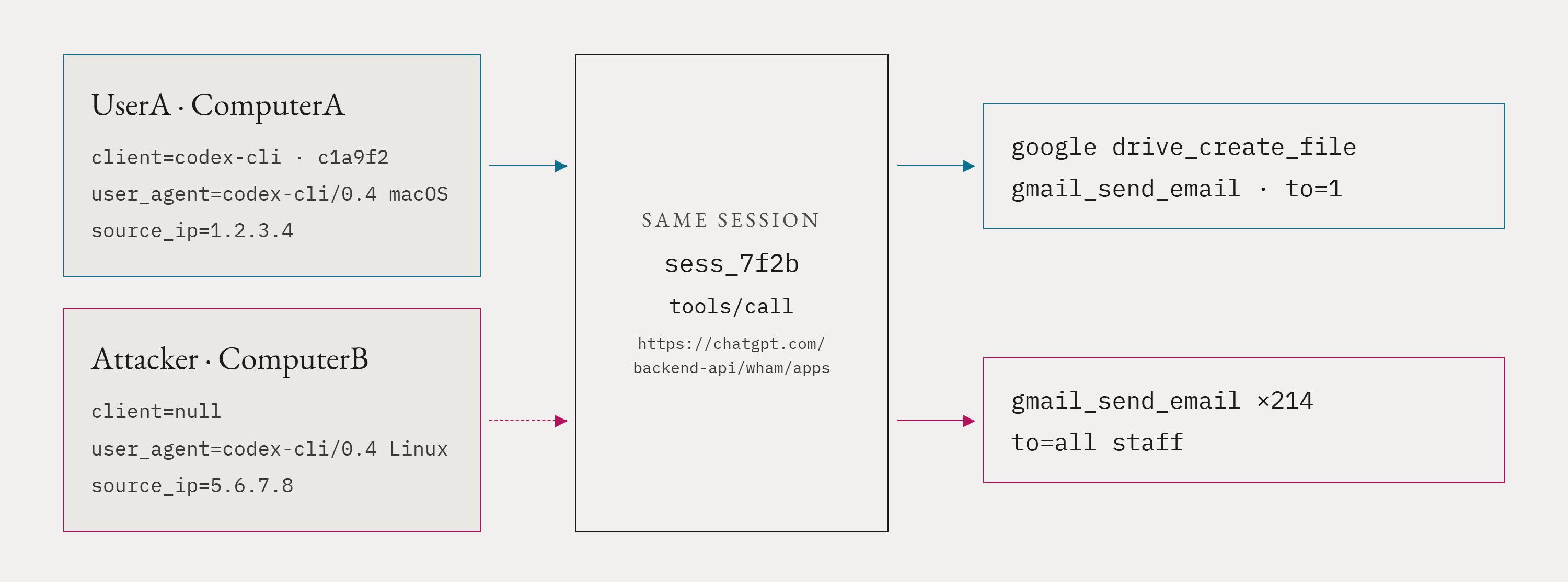
For example, assume UserA legitimately uses Codex from ComputerA for day-to-day work. During that session, UserA invokes one MCP tool to create a Google Doc and another to email that document to a coworker.
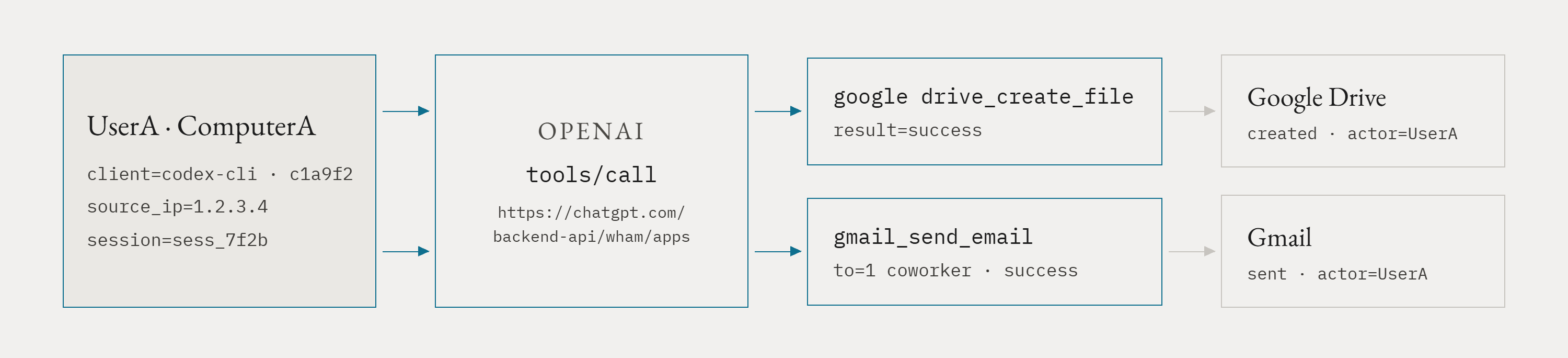
Now assume UserA’s Codex credentials are stolen and replayed from ComputerB. The attacker uses them to invoke the Gmail MCP tool and send mass internal phishing emails.

Although, from the provider side, Gmail only shows that UserA sent emails through the OpenAI connected app. The question we’d want the telemetry to answer is why the same session is suddenly invoking tools from a different machine, IP address, user agent, and client instance (or where there isn’t a legitimate client instance). A defender should be able to tie both calls back to UserA, the Codex client, the source IP, and the session behind the requests, then join that activity against provider-side logs to confirm the action that was actually executed.
This isn’t a perfect solution to logging, but it’s a starting point for where I’d like to see this telemetry go.
Wrapping Up and Takeaways
Connected Apps are not going away, especially as we move toward agentic workflows and automation. However, as shown above, Codex exposes credentials on disk that are accessible not only by the user, but also by the sandbox users. If these credentials are stolen, they can be used to execute MCP tools installed through the Apps option in Codex.
Some Apps do not appear to provide a way to limit Codex’s execution capabilities. Once an App is installed and authorized, Codex can act with that user’s delegated access. This is concerning for several reasons:
- Internal phishing
- Writing to or removing code from GitHub repositories
- Accessing documents
- And more
With limited logging, what happens if these credentials are stolen? How are detection engineers supposed to know when a token is refreshed or when an MCP tool is invoked, and from where? If someone is able to obtain these credentials, they may be able to stay under the radar until the user rotates their ChatGPT credentials or revokes the connected App.
I would like to see logging made available to the public so researchers can build and share detections where applicable. I would also like to see better logging around this activity more generally. Although the Apps themselves, such as Gmail, may provide logging, the resulting activity may not look suspicious from the provider side. Because of that, it is important for OpenAI and other AI agent platforms to provide effective logging for these actions.